Getting started with Oplyr
Everything in the app, in the order you will meet it. Read it top to bottom on day one, or jump to the part you need.
On this page
- Your first five minutes
- Finding your way around
- Working with your agent
- Choose how much your agent may do
- Review a change
- Memory: Oplyr remembers your work
- Talk instead of typing
- Terminal, browser, map and docs
- Music and meetings
- What your agent can touch
- Settings worth knowing
- Keyboard shortcuts
- When something is off
Your first five minutes
Oplyr runs on a Mac with Apple Silicon (M1 or later) and macOS 14 or later. You also need Claude Code or Codex installed and signed in, on the plan you already have. There is no API key to find and no Oplyr account to make.
- Request access. A one-click download link arrives by email, usually the same day.
- Open the download and move Oplyr into Applications. It is signed and notarized by Apple, so it opens on the first try.
- Tell Oplyr what to call you.
- Pick the agent to start with, Claude Code or Codex. You can connect the other one later and switch between them any time.
- Connect it. If you are already signed in to that tool on this Mac, Oplyr finds the session. If not, it shows the one command that signs you in.
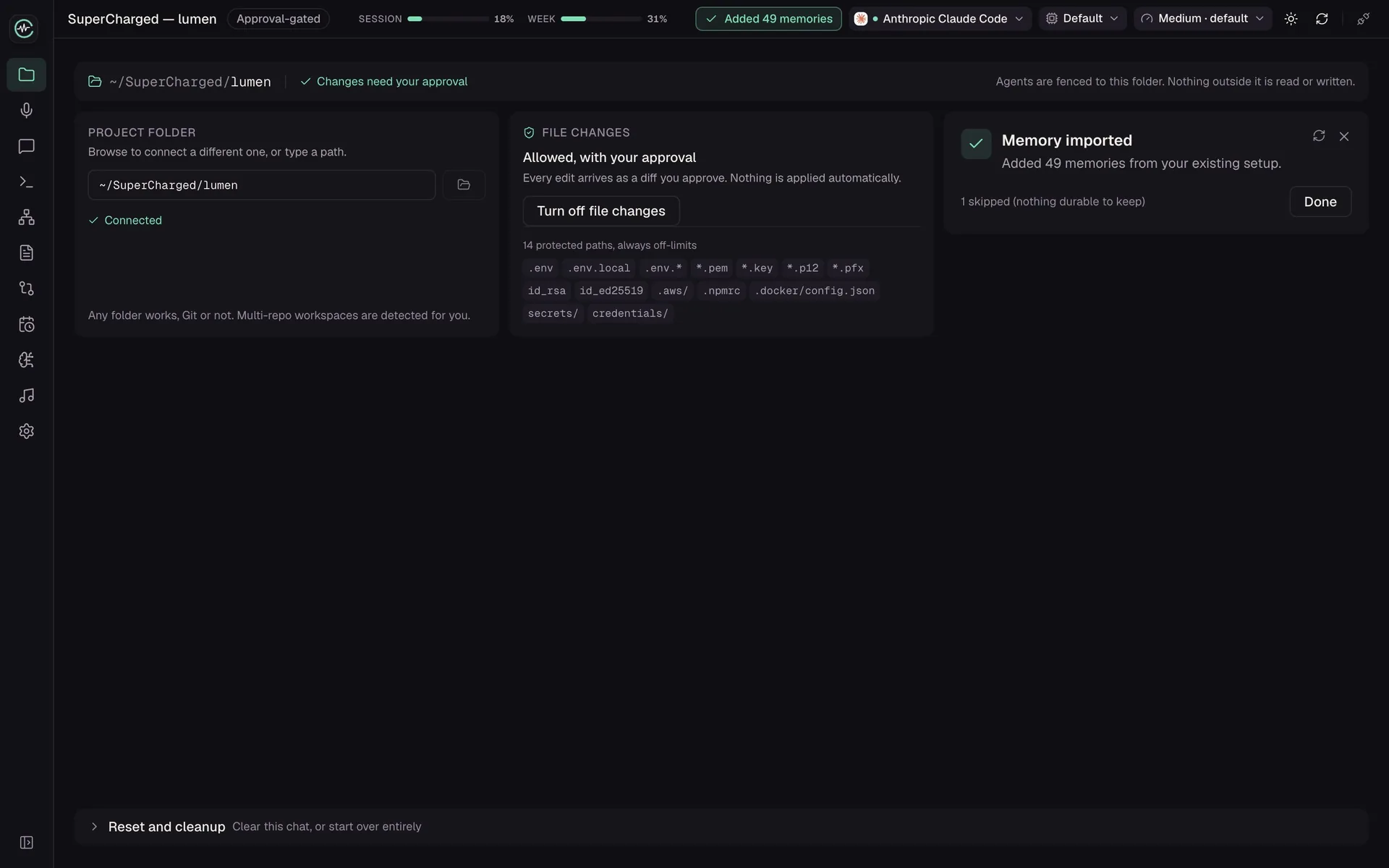
- Choose your project folder. Any folder works, with Git or without. On the same screen you can bring in what your past Claude Code and Codex sessions already know about the project, or leave it for later.
- Pick a desk pet for the top bar, or turn it off. It is only there for fun.
Every screen shows a short tour the first time you open it. Settings, General, Replay tour plays them again.
Finding your way around
Every screen is one click away in the sidebar on the left. The bar along the top tells you which project and which agent you are working with.
- Workspace your project folder, what your agents may touch, and bringing in memory.
- Voice talk to your agent, and set up dictation for any app.
- Agentic Chat where you work with your agent, one tab per chat.
- Shell real terminals, up to eight tabs.
- Browser a browser your agents can use, with your say.
- Codebase Map every file in your project, and what each one does.
- Docs your project’s Markdown files, properly rendered.
- Review the change your agent made, file by file, before you keep it.
- Source Control your Git: stage, commit and discard.
- Meetings today’s calendar, with a nudge before each call.
- Memory everything Oplyr remembers about your work.
- Music your YouTube playlists, playing inside Oplyr.
- Settings you, your agents, voice and appearance.
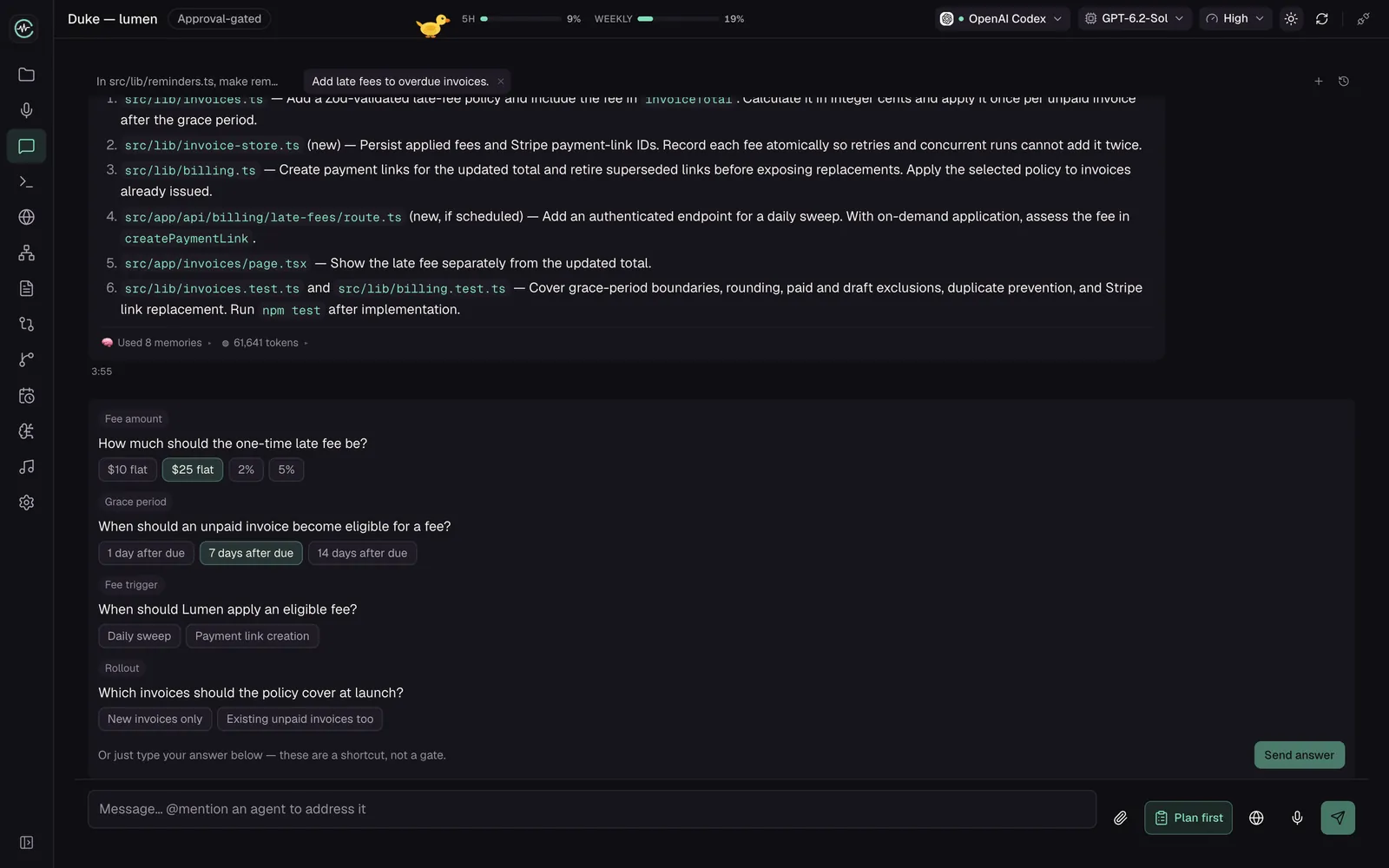
Along the top, from the left: your name and project; Approval-gated, which means file changes need your yes; how much of your agent’s 5-hour and weekly limits you have used; the active agent, its model and how hard it thinks; and the switch between light and dark.
Working with your agent
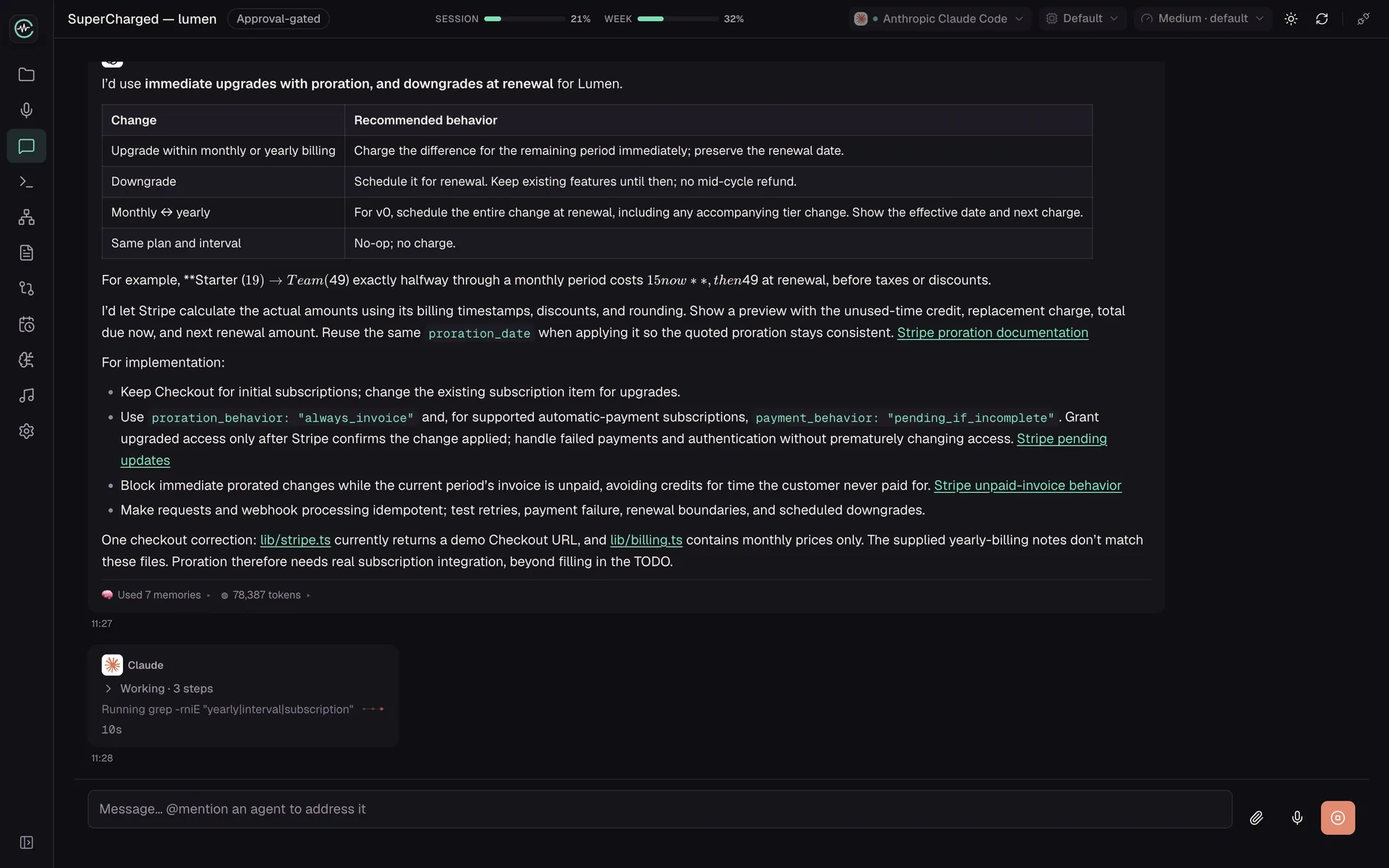
Agentic Chat is where most of the work happens. Type, or press the mic and talk. Your agent reads your project, runs commands, makes changes and tells you what it did.
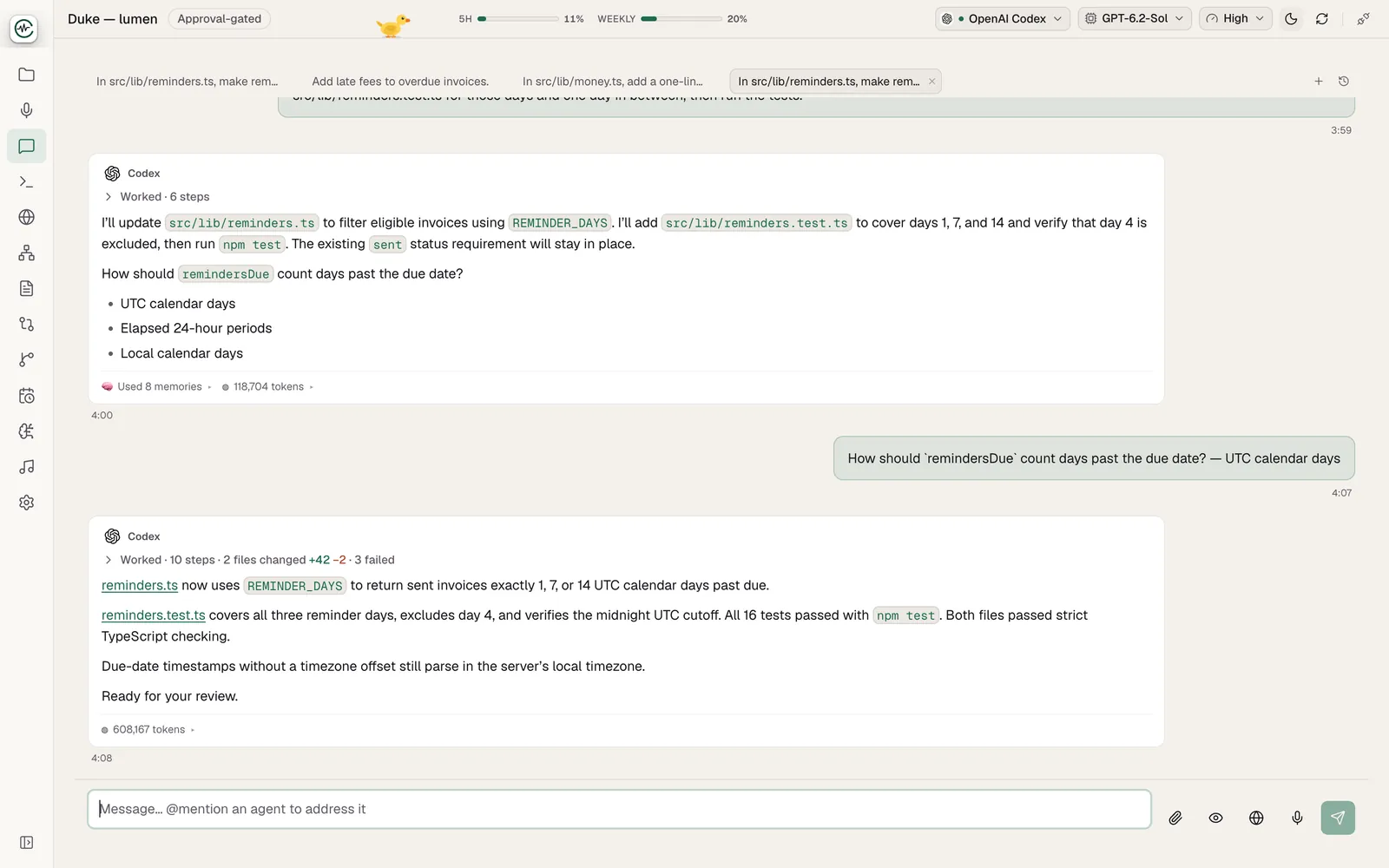
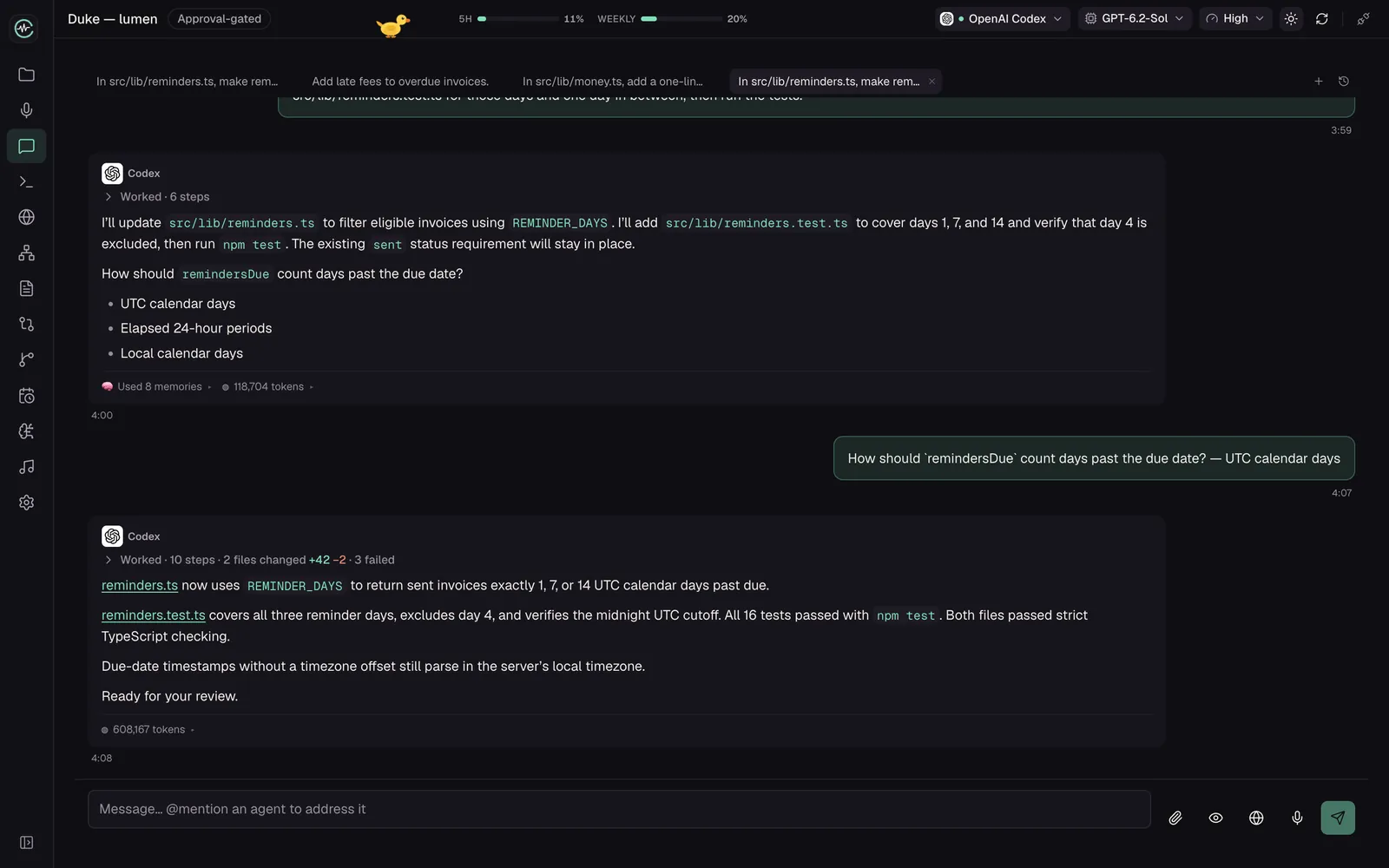
- Every step is shown. Open Worked at the top of a reply to see each file it read, every command with its output, every edit, and any helpers it started.
- Tabs. Each chat is a tab, and chats run at the same time. The clock button lists your older chats.
- Keep typing. While your agent works, Enter queues your next message for when it finishes, up to five.
- Your own messages. Hover one to edit and resend it, start a new chat from that point, or undo every file change made since.
- Commands. Type
/for Oplyr’s commands (/new,/review,/clear,/browser,/agents) and your agent’s own commands and skills. - Pictures. Attach a screenshot or image with the paperclip, and your agent sees it as an image.
- Memory at work. A line under each reply says how many memories helped and how many tokens it used.
Want a second opinion? Mention @claude and @codex in one message and they answer in turn, each reading the other’s reply. A room like this only talks: changes to your files always come from one agent, with your approval.
Choose how much your agent may do
The chip beside the message box sets the mode for that chat. Shift Tab moves between the four, and each chat remembers its own.
Review after
Your agent makes the whole change, then it waits in Review for you to keep or reject. This is where every chat starts.
Good for: Most work.
Accept edits
Changes are kept as they happen. Undo changes on your message takes them back.
Good for: Small tasks you trust.
Plan first
Your agent reads, writes a plan and asks what it needs to know. Nothing changes until you press Build it.
Good for: New features, and anything unclear.
Ask first
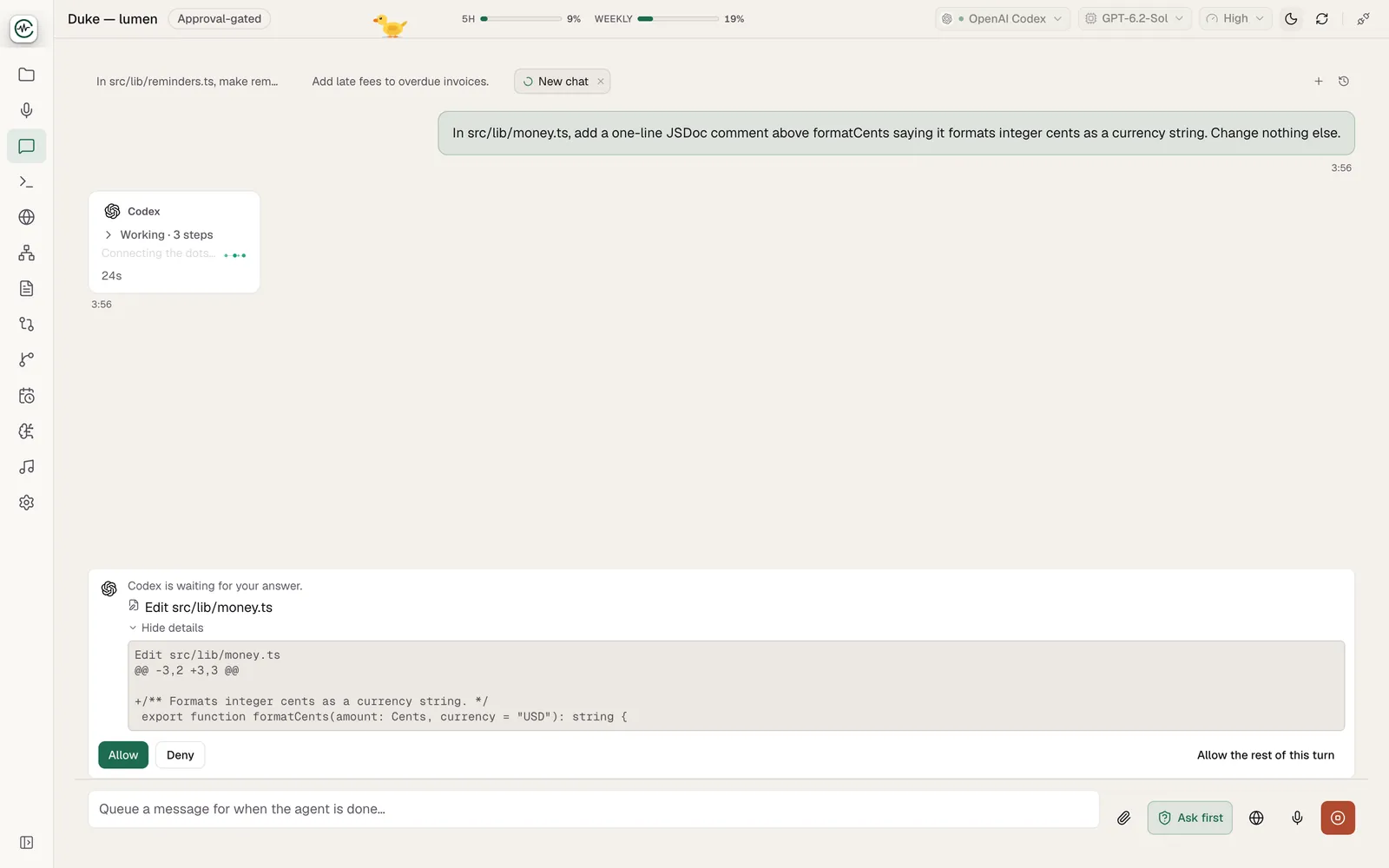
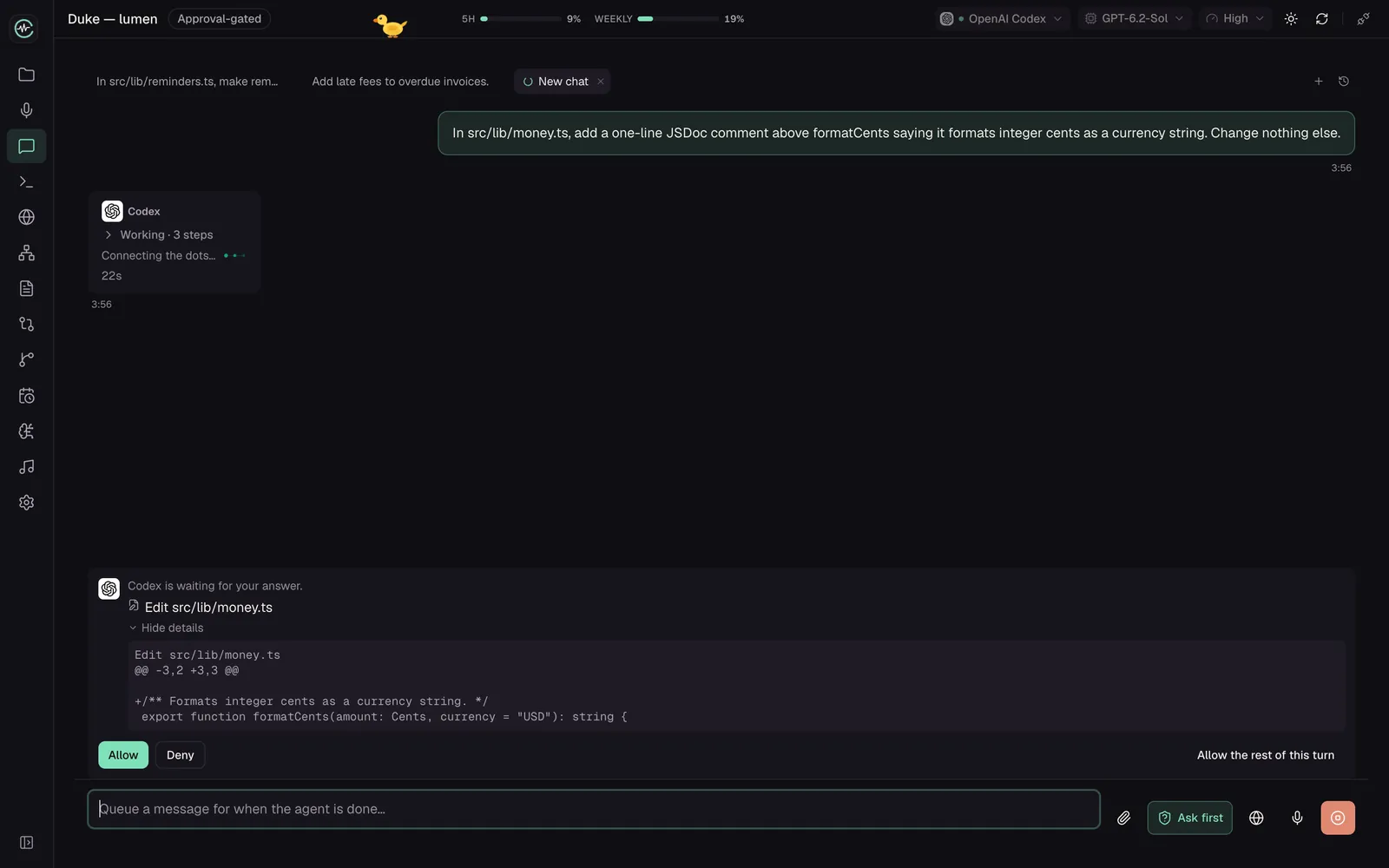
Your agent stops before each edit or command and shows you exactly what it wants to do. Reading and searching never ask.
Good for: Sensitive code, or watching every step.
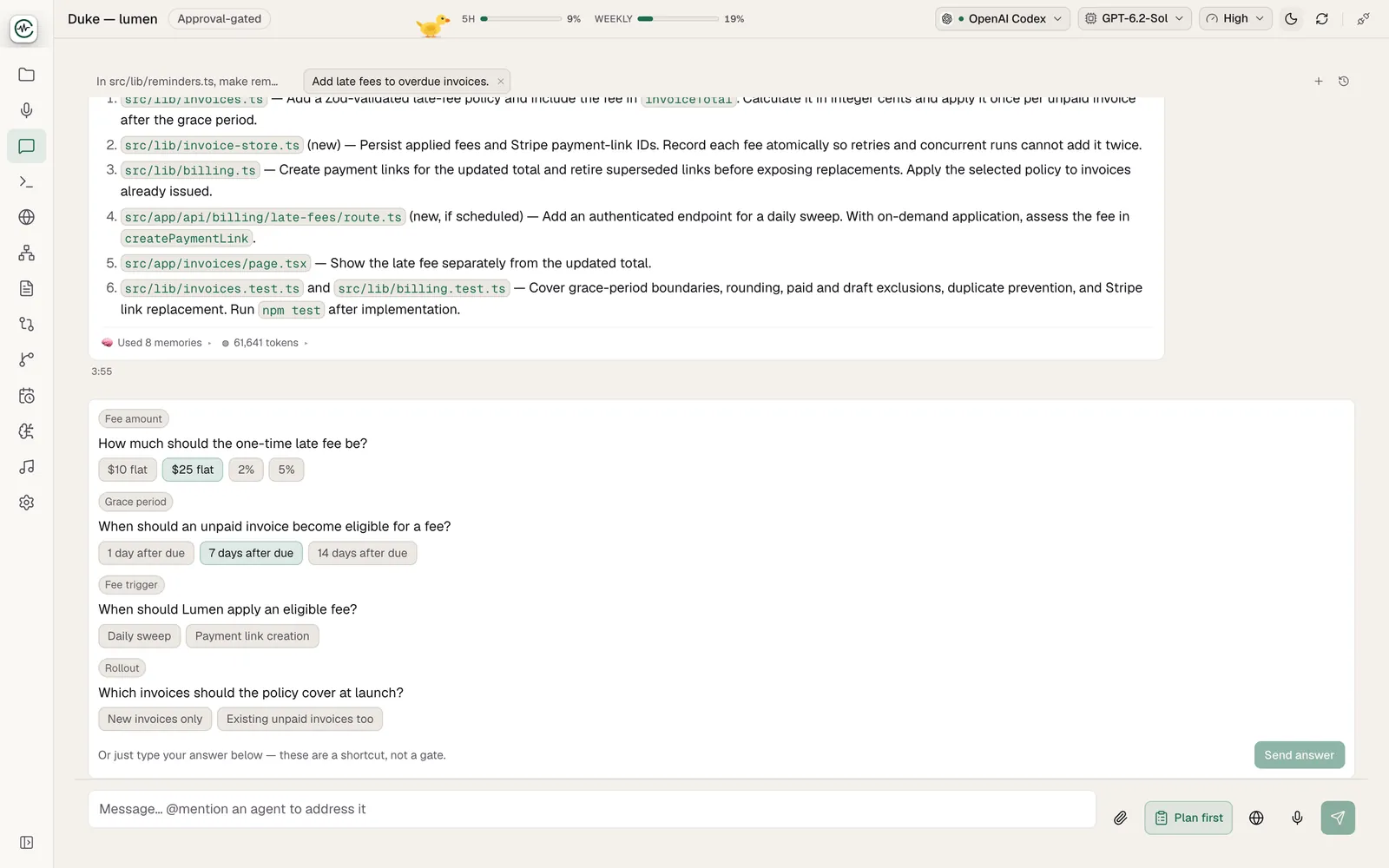
In Ask first, each request shows the edit or the command in full. Allow lets that one step run, Deny skips it, and Allow the rest of this turn stops asking until the reply ends. No answer in 15 minutes counts as no.
Review a change
In Review after, the finished change waits on the Review screen. Nothing is final until you decide.
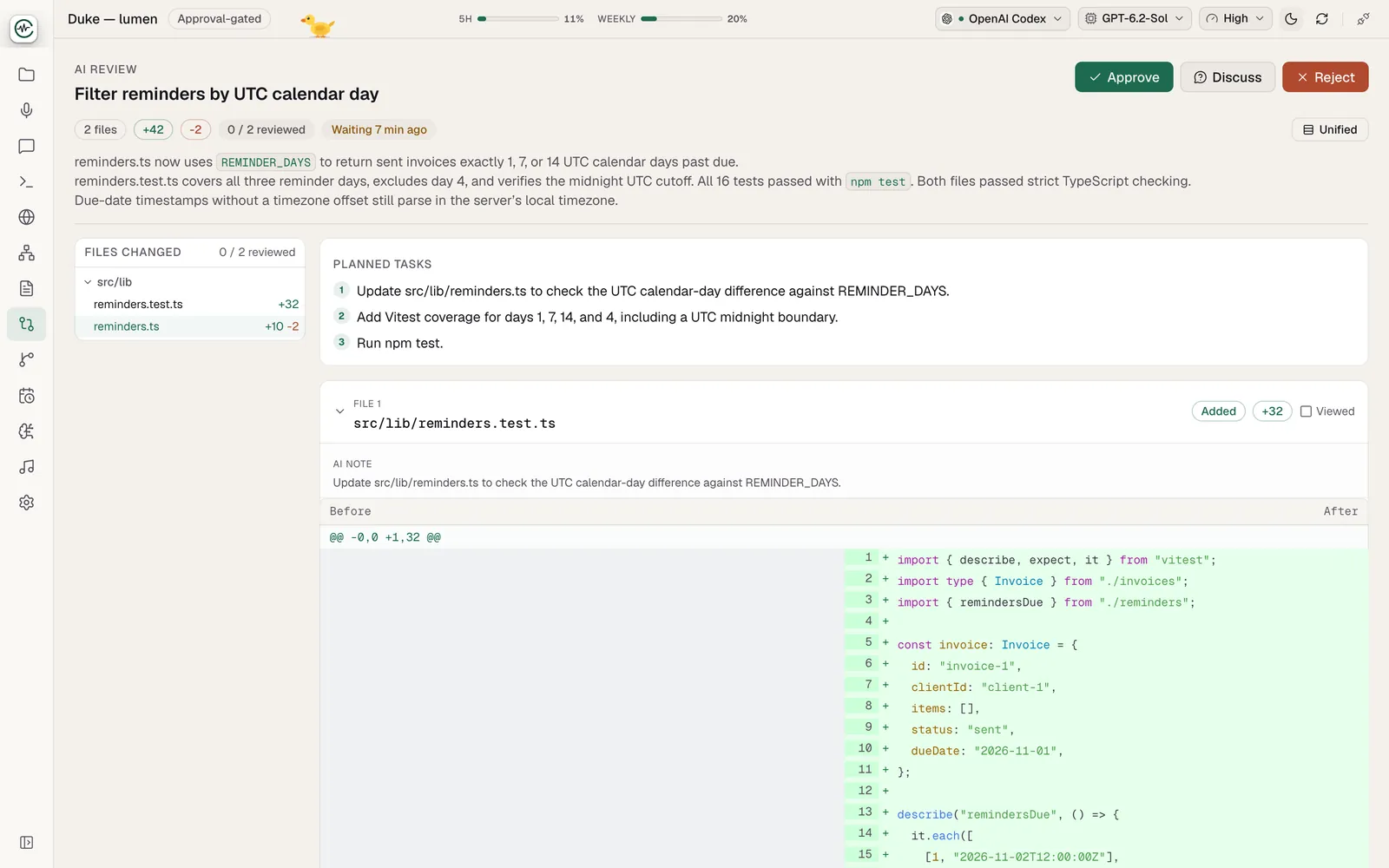
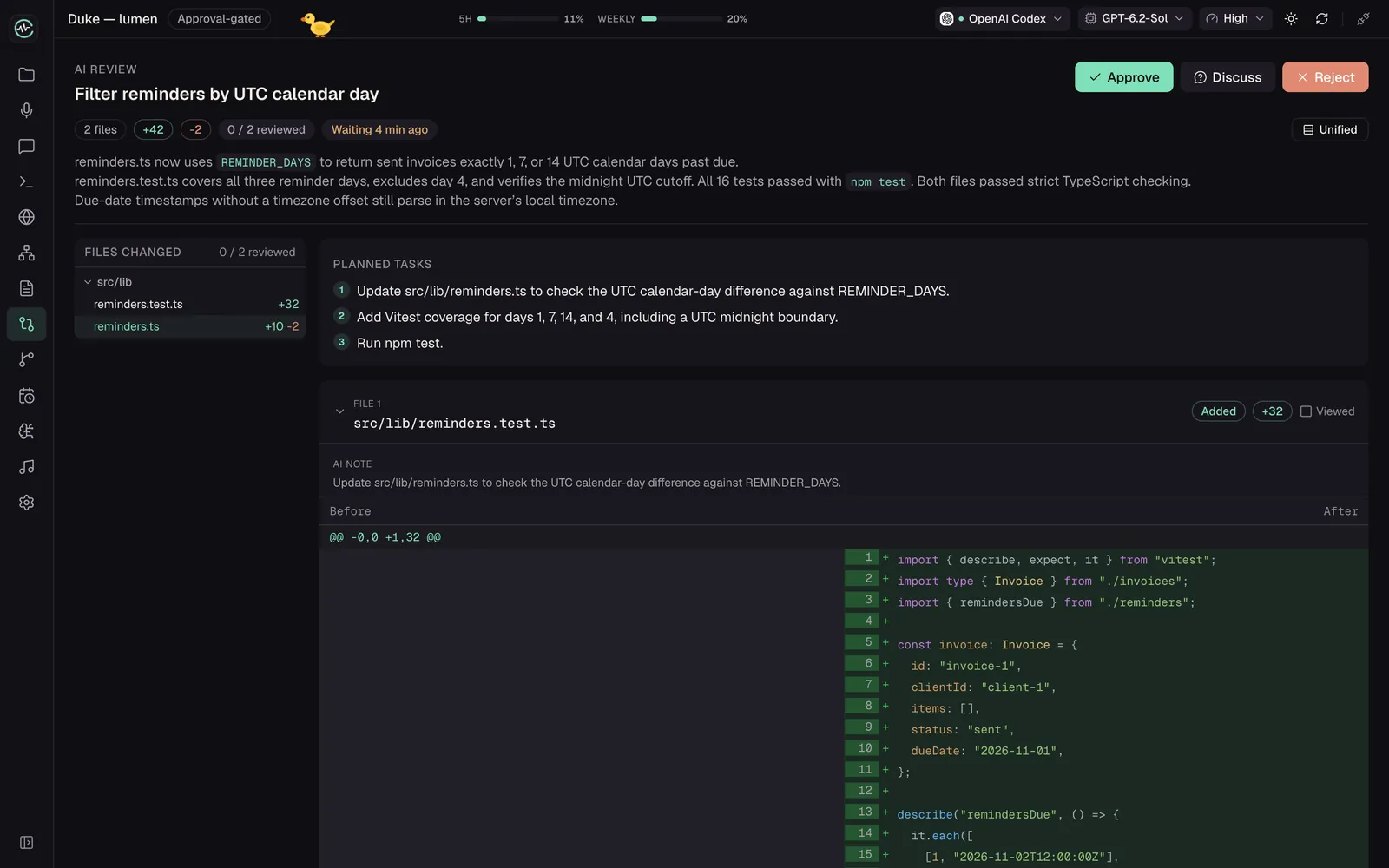
- The summary says what changed and why, which tests your agent ran, and anything it is unsure of.
- Every file is listed with the lines added and removed. Tick Viewed as you go, and switch between one column and side by side.
- Approve keeps the change.
- Discuss lets you ask your agent about it before you decide.
- Reject puts every file back the way it was. You can add a note telling your agent what to change.
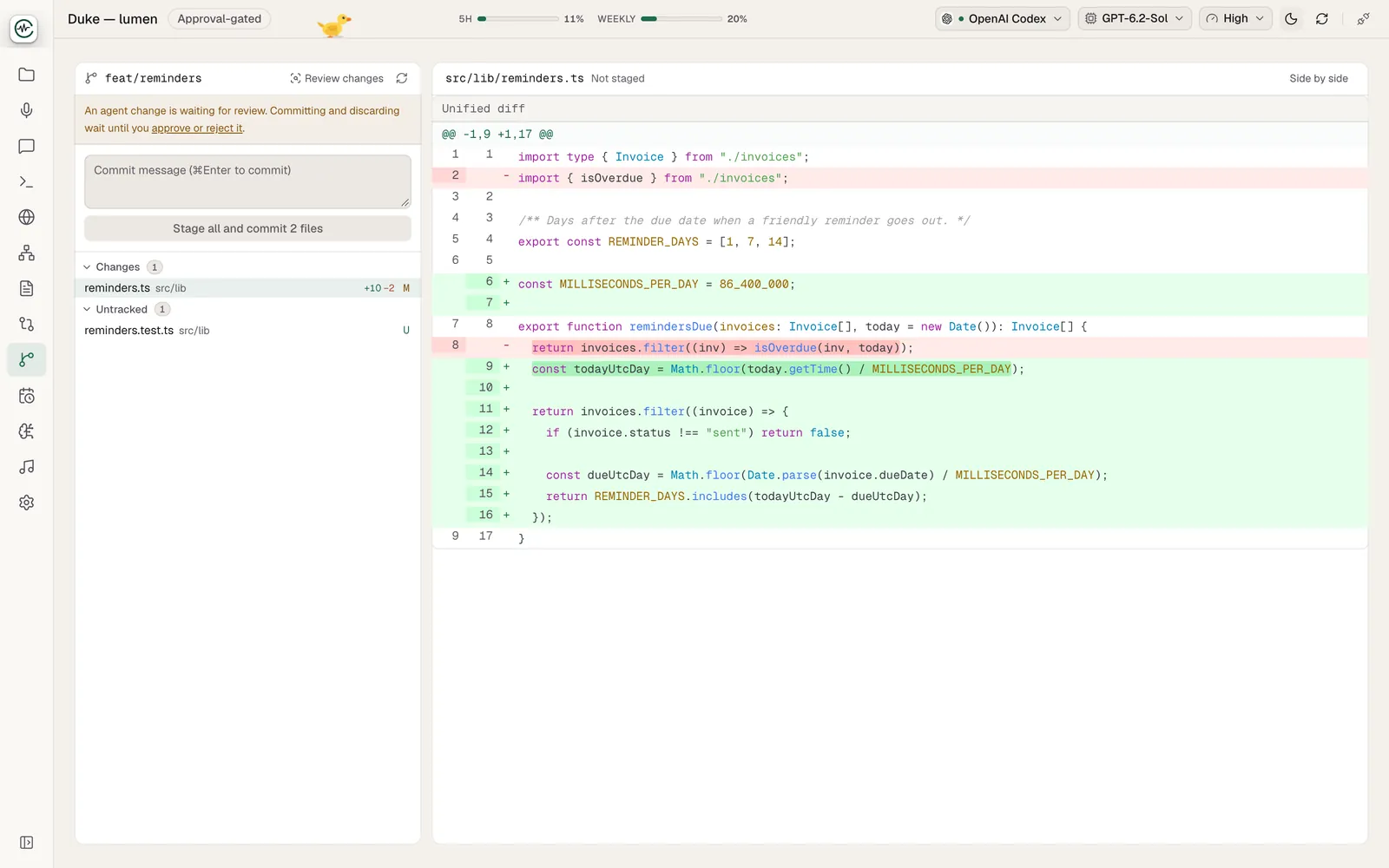
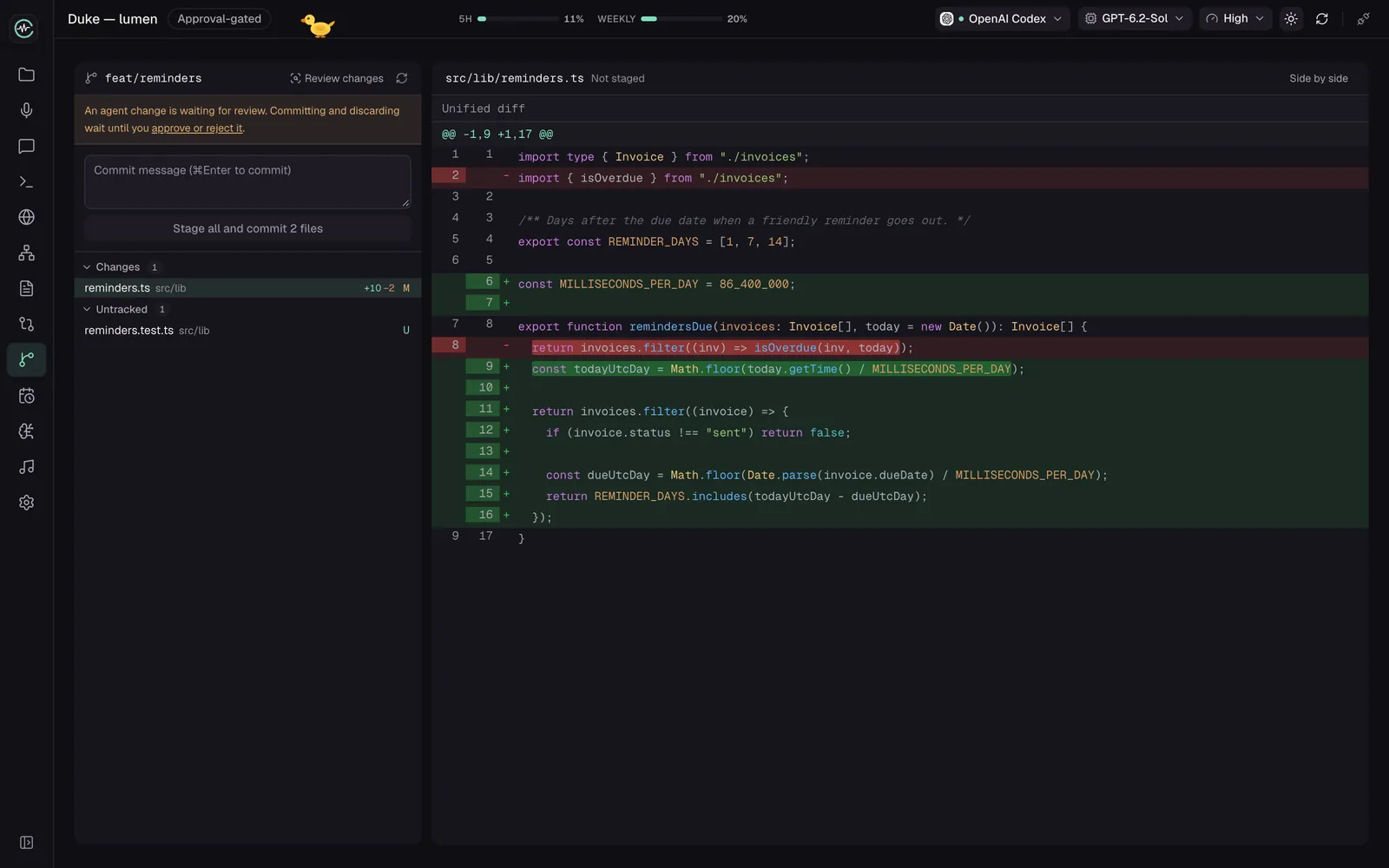
Source Control shows your Git the way an editor does: the branch, staged and unstaged files with their line counts, and each file’s diff. Stage, unstage, discard (it asks first) and commit with ⌘ Enter. A folder without Git gets a Start a repository button. While a change waits in Review, committing and discarding wait too.
Memory: Oplyr remembers your work
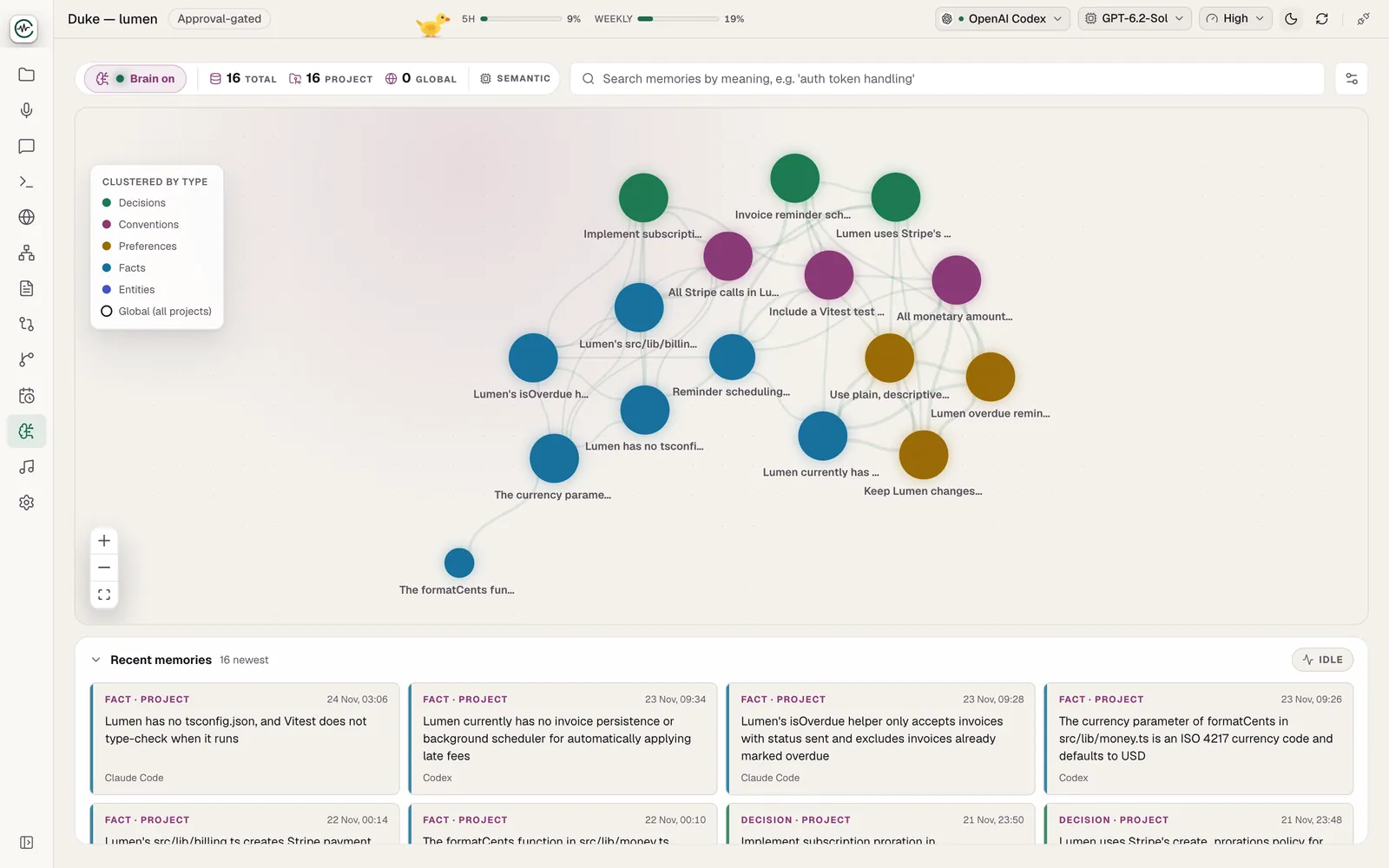
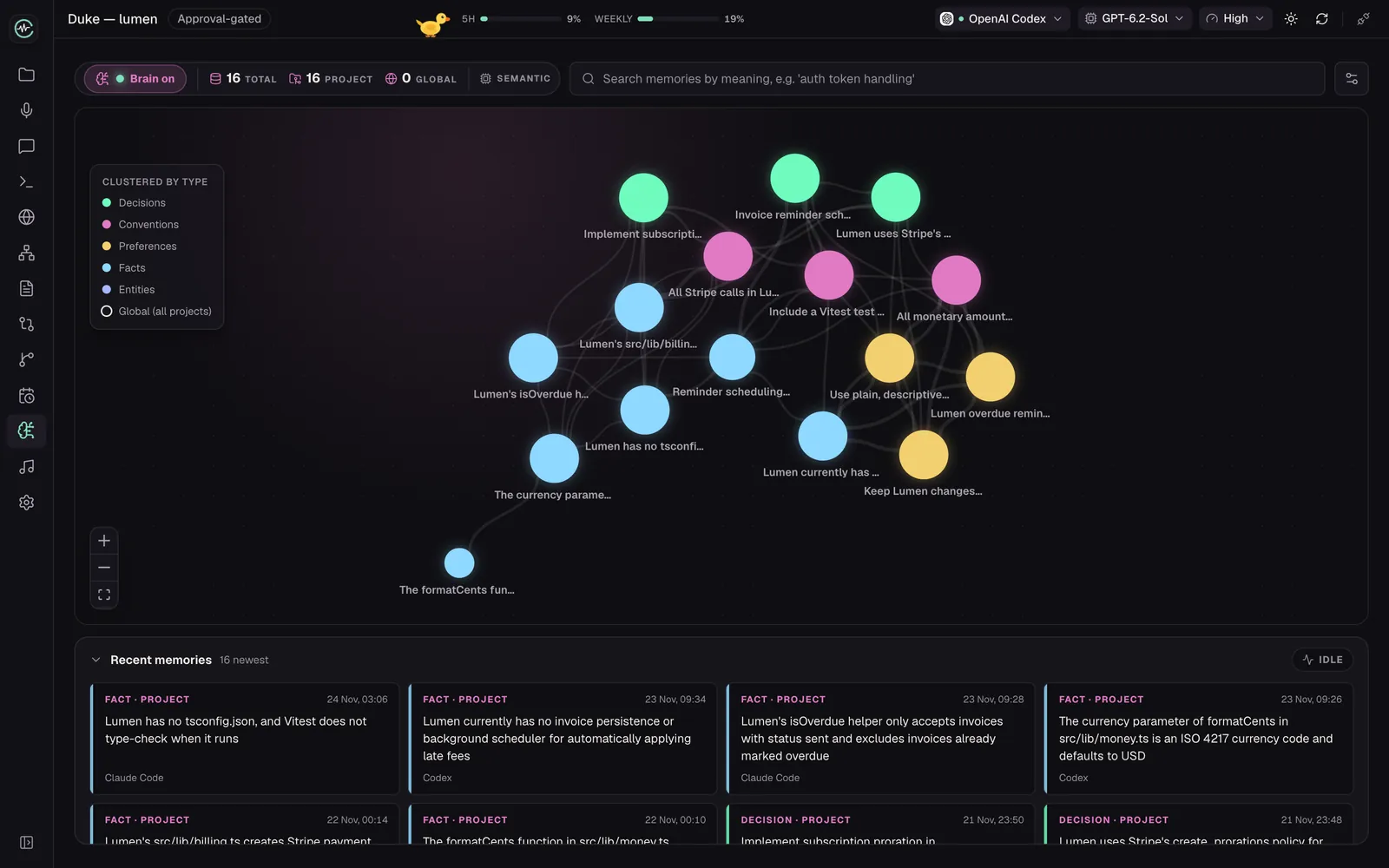
Oplyr keeps one memory of your work on your Mac, and every agent shares it. Switch from Claude Code to Codex and nothing is lost.
- Bring what you have. At setup, or later from the Workspace screen, Oplyr reads what your past Claude Code and Codex sessions already know, and your project’s notes such as
CLAUDE.mdandAGENTS.md. Nothing comes in until you choose it. - It learns as you work. Decisions, conventions and facts from your chats become memories. A change you reject teaches it nothing.
- It helps without being asked. Ask “Where did we leave off?” and your agent answers from your real work.
- You stay in charge. The Memory screen shows every memory, grouped by type. Search by meaning, open one to see where it came from, and delete anything you do not want kept. Brain on turns it off and on.
Talk instead of typing
Speech becomes text on your Mac. Nothing you say leaves it.
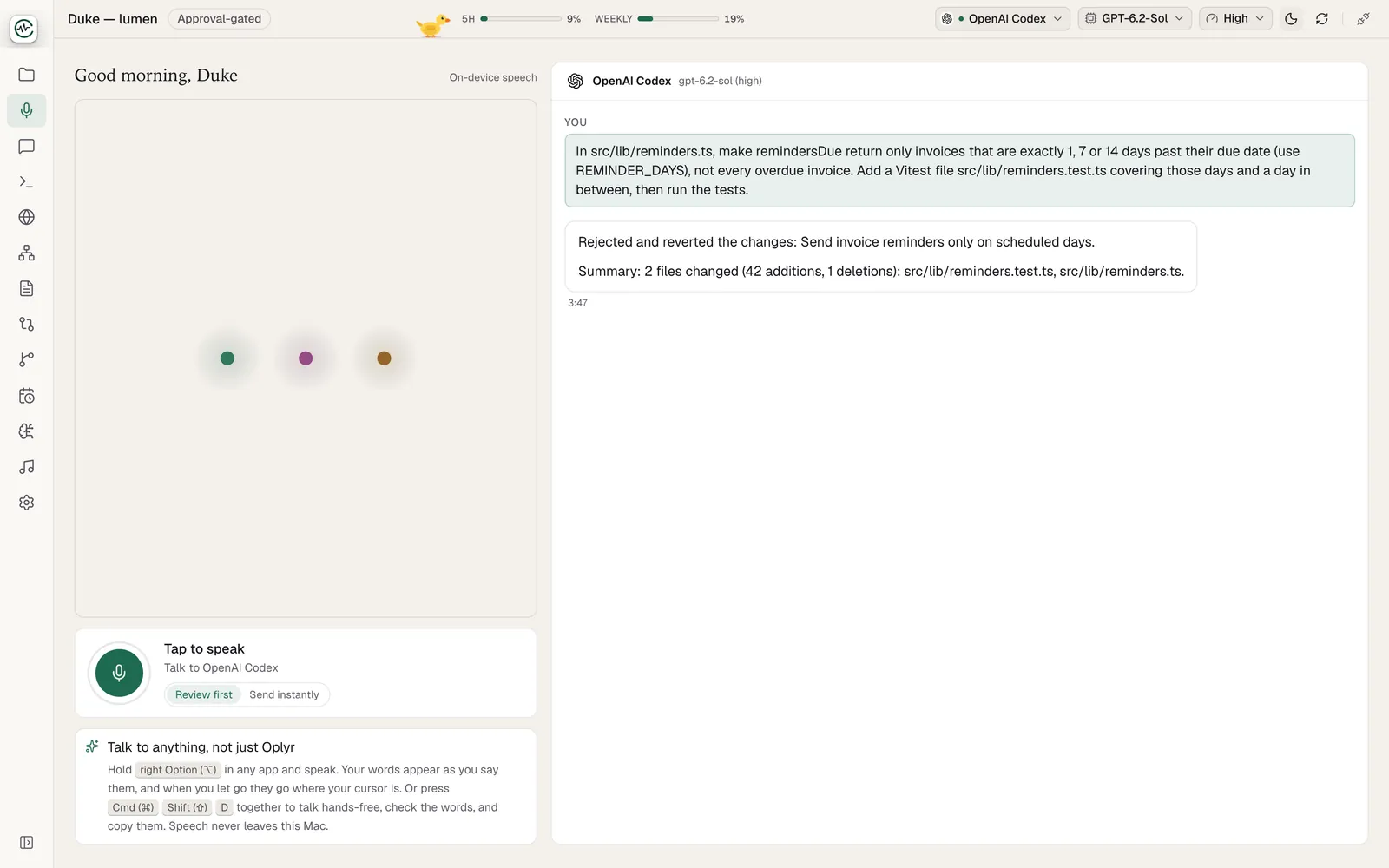
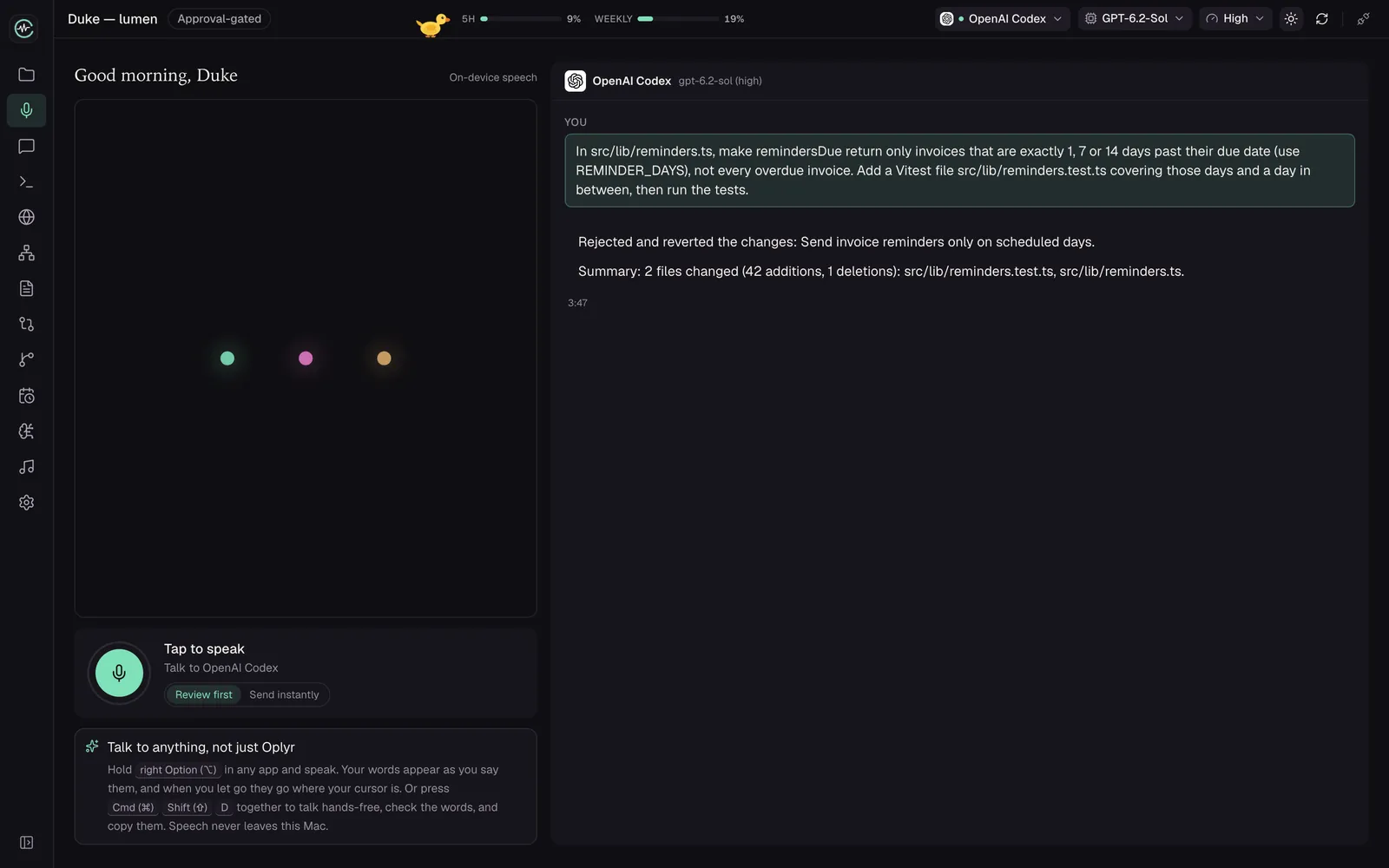
- The Voice screen. Tap to speak, and your words go to the active agent. Review first lets you fix the words before they send. Send instantly sends them when you stop.
- Dictate into any app. Hold the right Option key anywhere and speak. Your words appear as you say them and land where your cursor is when you let go.
- Hands free. ⌘ Shift D starts talking without holding a key. Check the words, then copy them.
- Your words, spelled your way. Settings, Voice keeps a custom vocabulary and the words Oplyr has learned, so names come back right.
Dictation into other apps needs one macOS permission: System Settings, Privacy & Security, Input Monitoring, then switch Oplyr on.
Terminal, browser, map and docs
The rest of your day’s tools, in the same window as your agent.
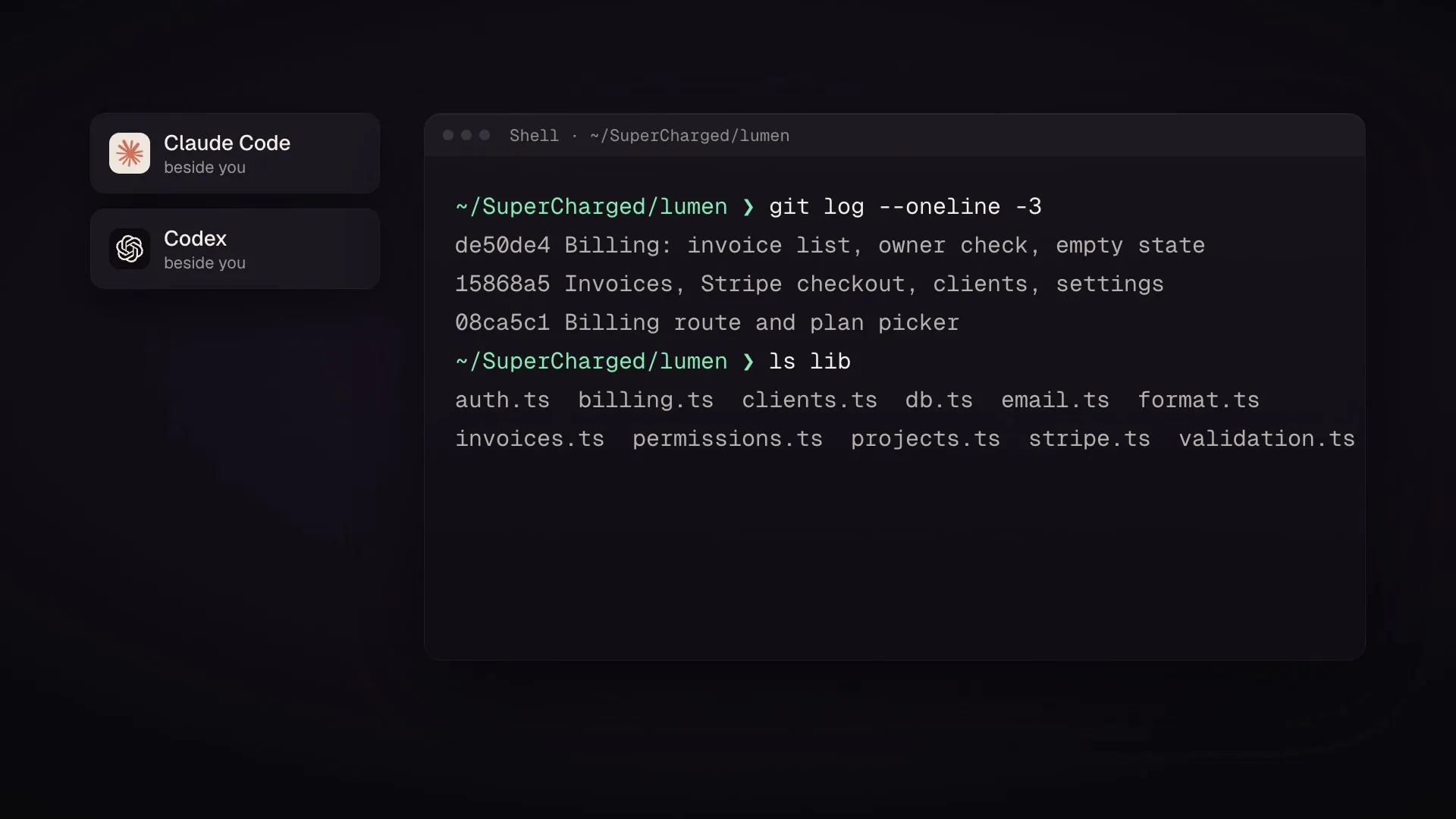
- Shell. Real terminals, up to eight tabs, each with its own shell that keeps running while you are on another screen. Ctrl Tab moves between them.
- A browser for your agents. In Settings, Agents, Browser for agents, choose Off, your own Chrome, or Oplyr’s browser. Your agent asks before anything that posts, sends, buys or deletes, and Take over hands control back to you.
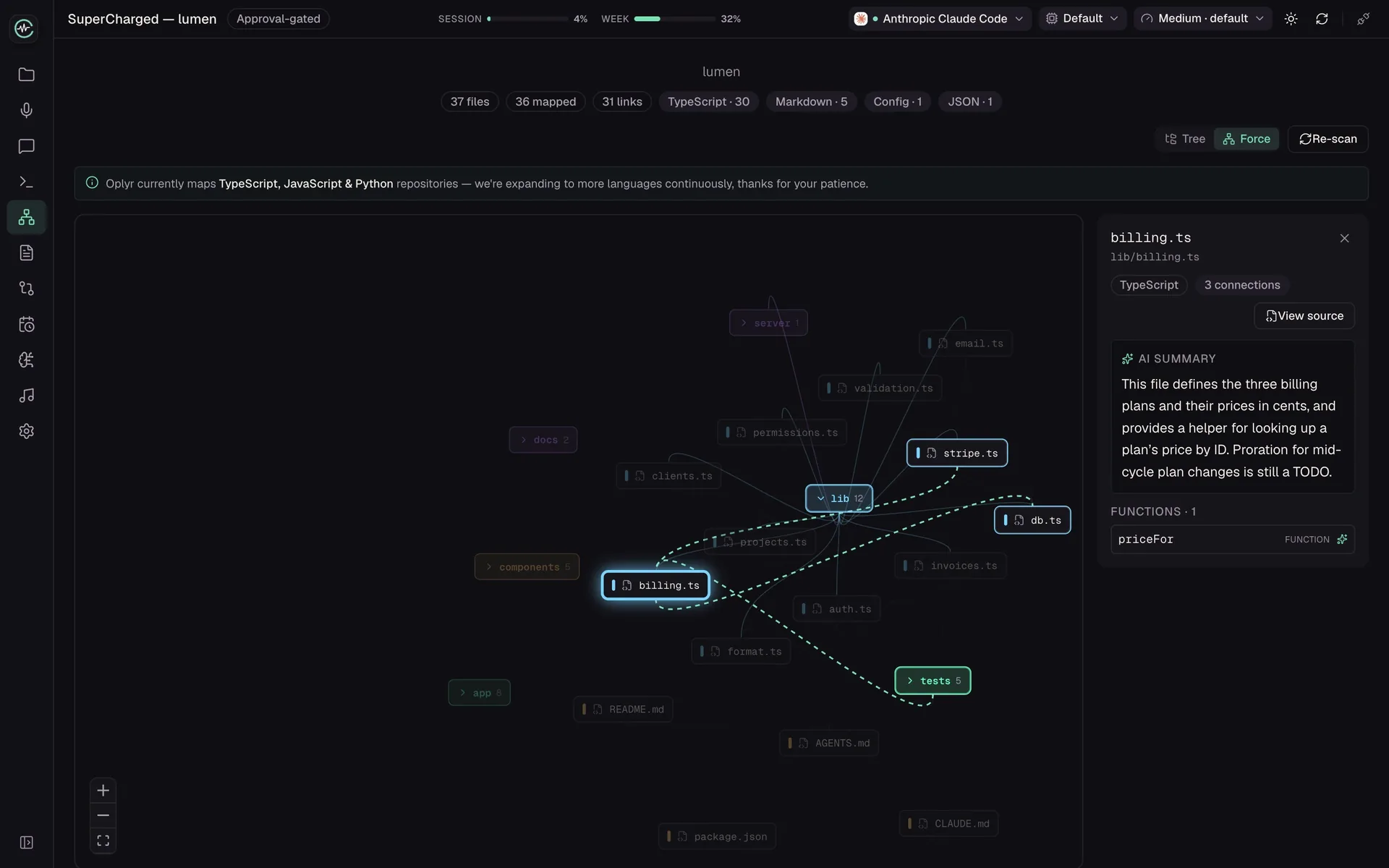
- Codebase Map. Every file as a tree or a graph, with what imports what. Open a file for a one-line summary of what it does. It maps TypeScript, JavaScript and Python today.
- Docs. Your project’s Markdown files, with diagrams and math, next to your work.
Music and meetings
Both are optional. Each asks Google for its own read-only permission, and Oplyr never sends your code, memory or conversations to Google.
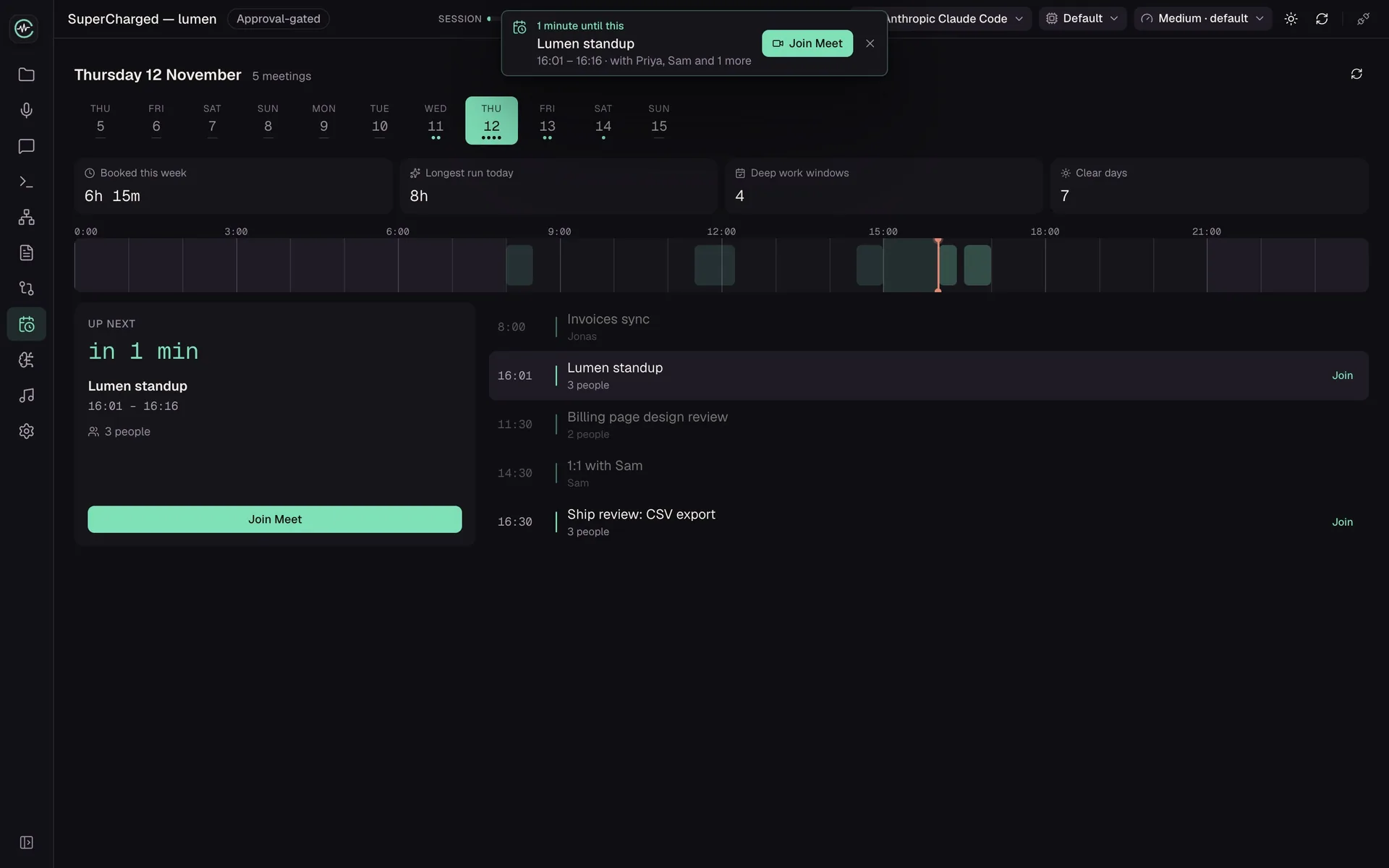
- Meetings. Today from your Google Calendar as one rail: your meetings and the free time between them. A desktop notification before each call, even when Oplyr is behind another app, and Meet, Zoom and Teams links on one button. Settings, General, Meeting reminder sets how early it comes.
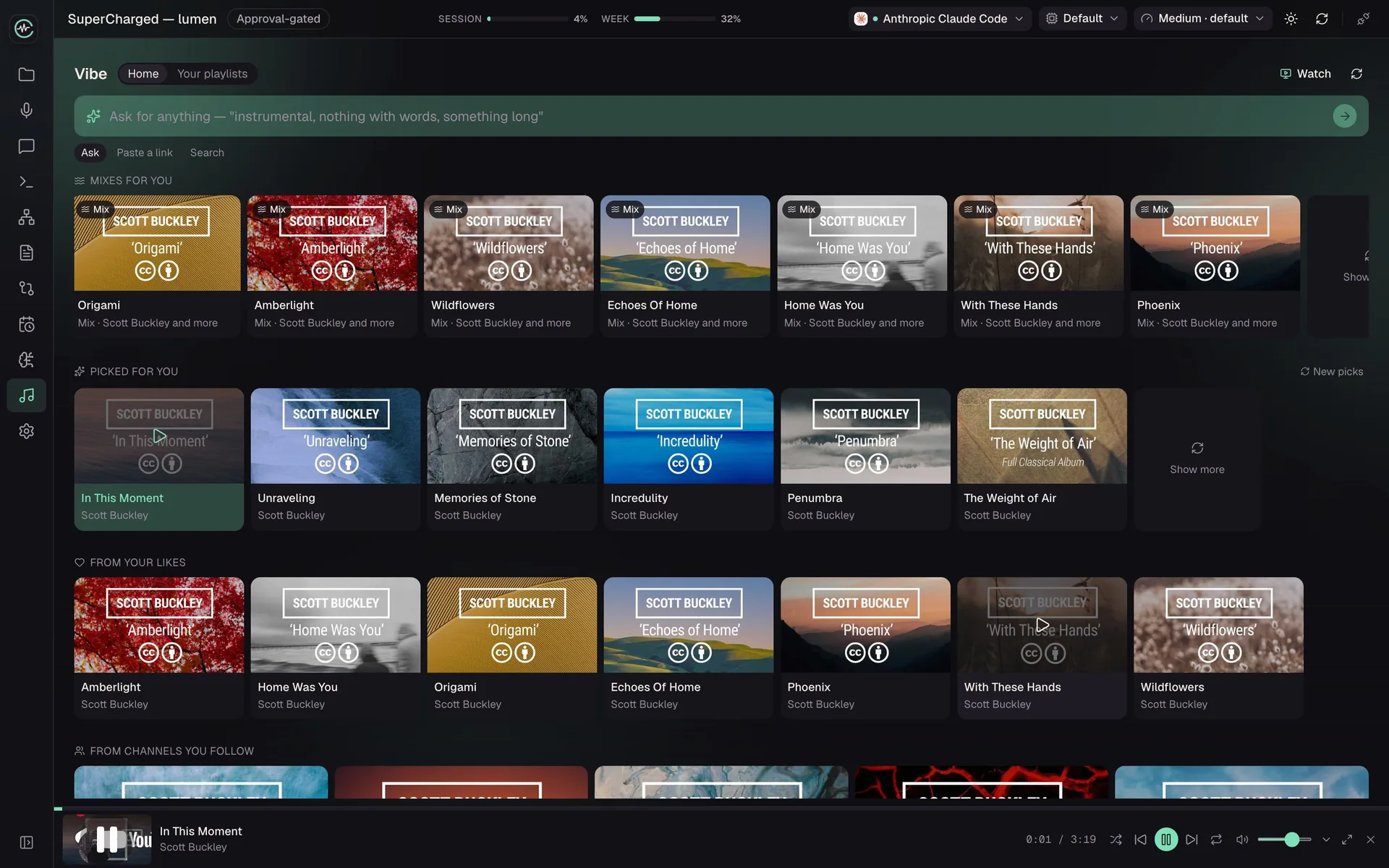
- Music. Your own YouTube playlists, playing inside Oplyr. It turns down when you talk to your agent and comes back after. Ask your agent for something to listen to and it finds it.
What your agent can touch
Your agents work inside the project folder you connect, and nowhere else.
- One folder. The Workspace screen shows the folder your agents are fenced to. Browse or type a path to change it.
- File changes. On by default, always with your approval. Turn them off and your agents can only read and answer.
- Secrets stay out. Files such as
.env, private keys and cloud credentials are always off-limits, in every mode.
Settings worth knowing
Three tabs: General, Voice and Agents.
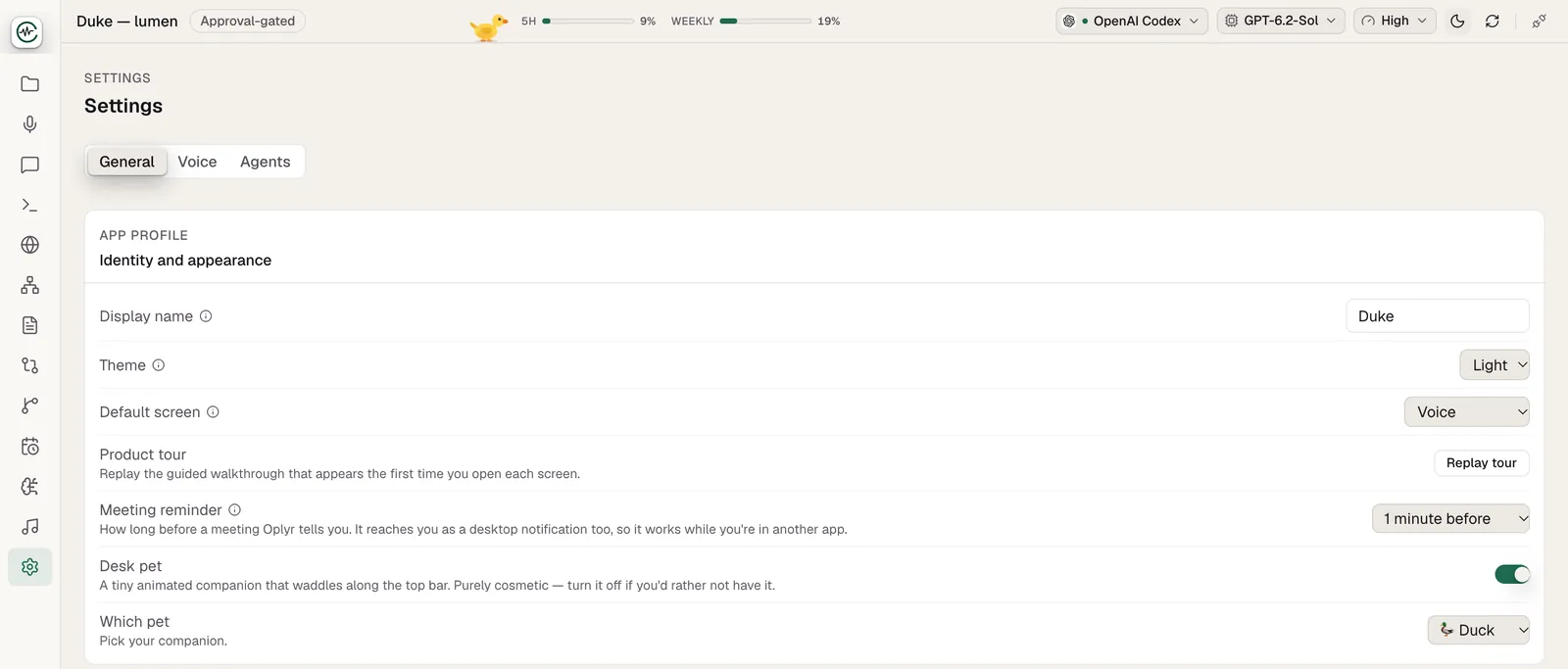
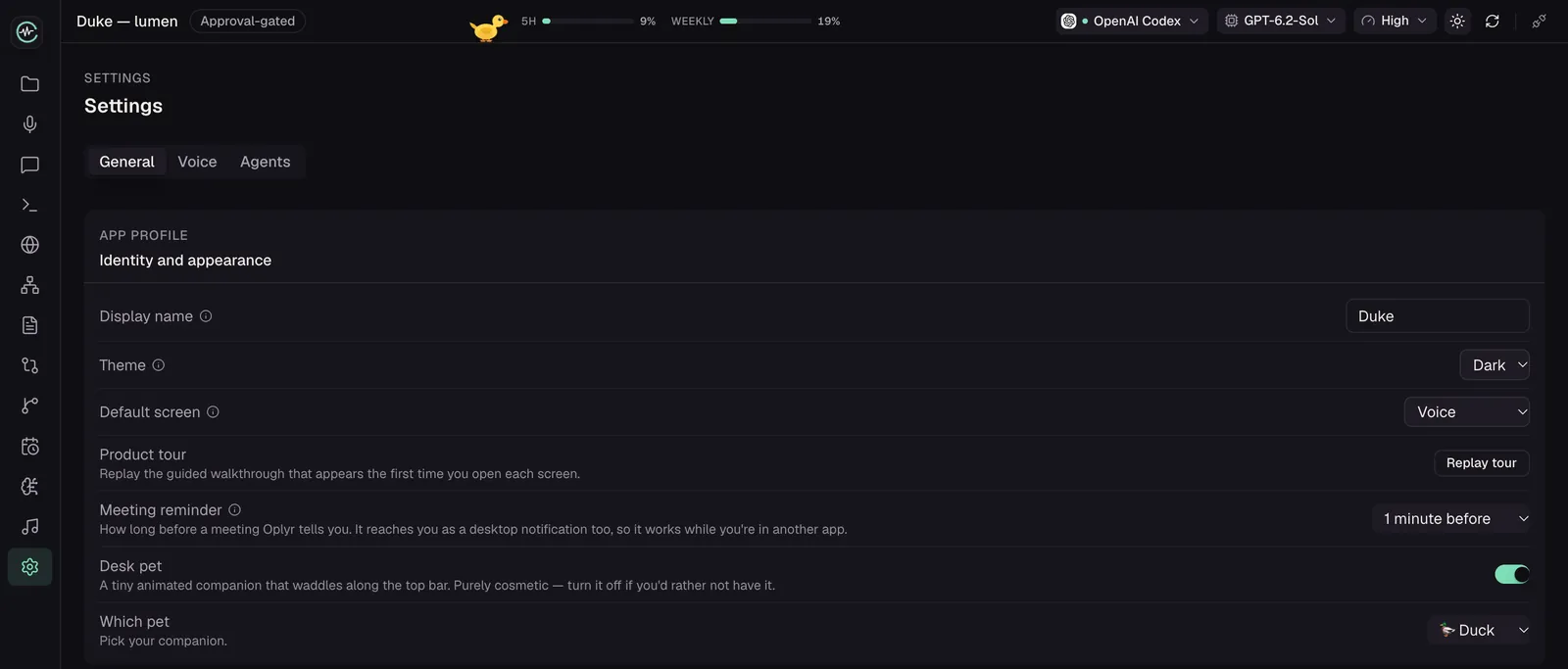
- General has your name, light or dark, the screen Oplyr opens on, the tour, the meeting reminder and the desk pet. Under Assistant providers you connect Claude Code or Codex, choose the active one and update their command-line tools. Your Google account for Meetings and Music is here, and so is Report a bug, which goes straight to the person who builds Oplyr. Its diagnostics never include your code, file names, memory or conversations.
- Voice has dictation, your custom vocabulary and the words Oplyr has learned.
- Agents has Tools and skills, which lists each agent’s MCP servers, skills, commands and plugins, and Browser for agents.
Keyboard shortcuts
The few worth learning on day one.
| ShiftTab | Next change mode |
| Enter | Send, or queue while your agent works |
| / | Commands and skills |
| @ | Mention an agent |
| ⌘Enter | Commit, in Source Control |
| CtrlTab | Next terminal tab |
| Right ⌥ hold | Dictate into any app |
| ⌘ShiftD | Hands-free dictation |
When something is off
The usual fixes, quickest first.
- Your agent hit its usage limit. The top bar shows how much of your 5-hour and weekly limits is used. When one runs out, Oplyr tells you when it resets, and you can carry on with your other agent from the top bar.
- An agent will not connect. Install its command-line tool and sign in to it once in Terminal, then press Connect in Settings, General, Assistant providers.
- Voice does not start. Oplyr needs microphone access: System Settings, Privacy & Security, Microphone.
- Anything else. Settings, Report a bug, or write to hello@oplyr.com. A person reads every one.